Writing in the Text Editor
Every event in a TripDeck itinerary (flights, hotels, activities, and notes) is also a line of plain text. You can view and edit the whole trip as plain text in the Text Editor tab.
Text Editor
The Text Editor tab shows the raw text behind your trip. Editing it directly is the fastest way to import an existing itinerary or make quick updates. It also keeps your itinerary portable: your exported trip is just plain text, readable in any text editor.
The Visual Builder and the Text Editor stay in sync in both directions. Drag a card in the Visual Builder and the underlying text updates. Edit a line of text and the Visual Builder redraws to match.
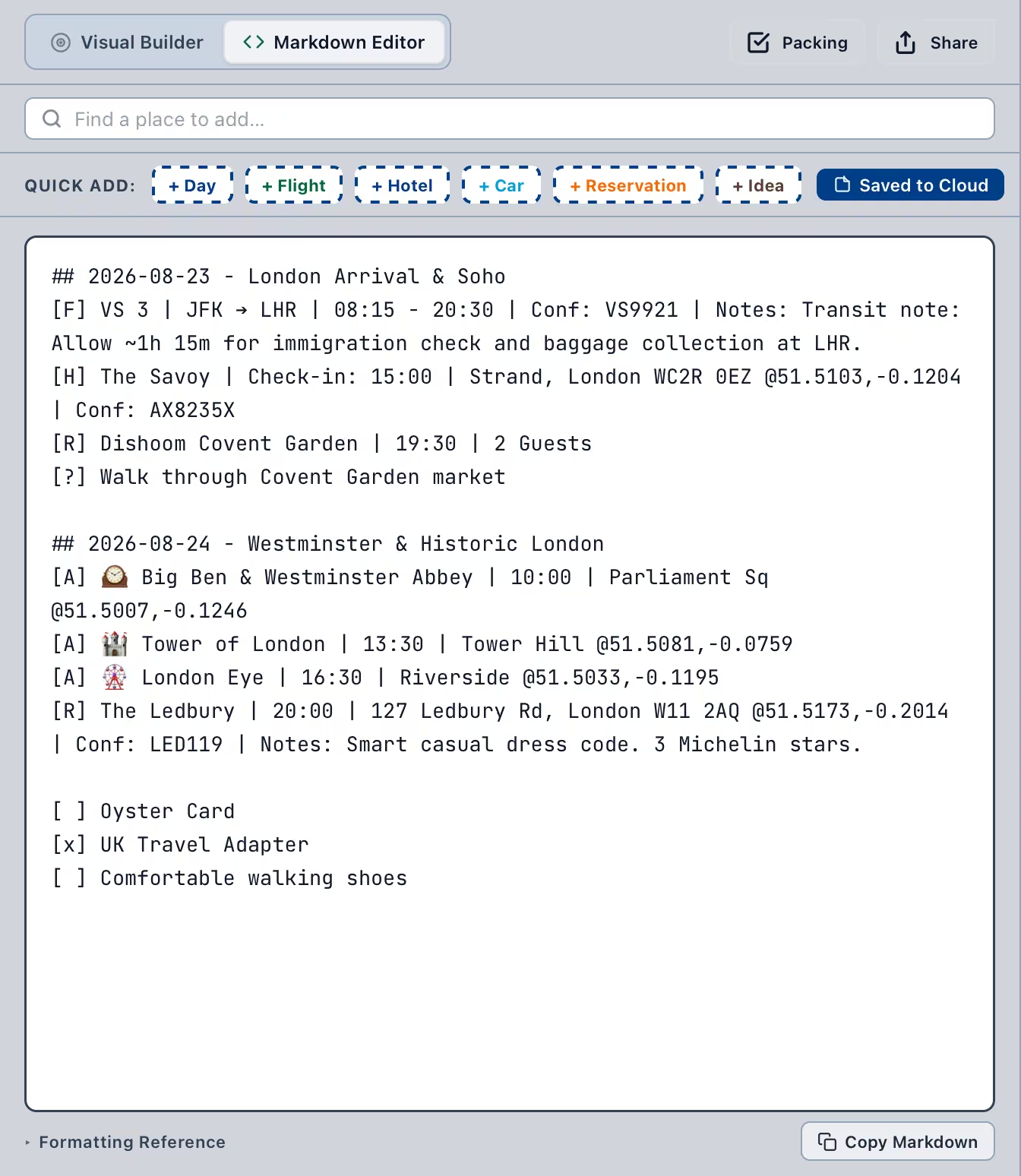
The editor features event categories and a search box to help find place names and addresses. Start by clicking on an event category and then fill out the information. You can also start by searching for a place name or address, and then choose what type of event you want to create.
There's a simple syntax to get the most out of your itinerary, and a quick reference guide is available.
Itinerary Syntax
Trip Name
Add a level-1 heading to define the trip name:
# Trip to LondonDay Headers
Start a new day with a level-2 heading and an ISO date. Everything below a day header belongs to that day. An optional title may be added after a dash:
## 2026-10-15
## 2026-10-16 - Museum Day
Event Types & Tags
Each event has its own line starting with a bracketed tag for its type. Further info
fields are separated by | pipe. The exact fields processed depend on the
event type.
[F] AA 104 | IAD - JFK | 08:30 - 10:15 | Conf: WXY89A
[H] Ace Hotel | Check-in: 15:00 | Checkout: 11:00 | 20 W 29th St, New York, NY
[C] Hertz | Pickup: 09:00 | Return: 14:00 | LGA Terminal B
[R] Balthazar | 19:30 | 4 Guests
[A] Museum of Modern Art | 10:30 | 11 W 53rd St, New York, NY
[?] Explore Nomad neighborhood landmarks
[F] Flights
Flights process carrier/flight numbers, airport route codes, departure and arrival times, and optional confirmation codes:
[F] DL 482 | JFK - LHR | 19:30 - 07:45 | Conf: AB123C- Routes: Separate 3-letter origin and destination IATA codes
with a
-dash,->,➔arrow, or the wordto(such asJFK - LHRorSFO to JFK). - Times: Departure and arrival times can be written as
24-hour time (
08:30 - 10:15) or 12-hour AM/PM time (8:30 AM to 10:15 AM). All flight times are assumed to be in the local time of the airport.
[T] Transit
Ground and water transportation (including trains, buses, subways, and ferries) uses
the [T] tag, or specific sub-mode tags like [TRAIN], [BUS],
[SUBWAY], and [FERRY]:
[T] Eurostar 9014 | St Pancras to Gare du Nord | 09:31 - 12:47 | Coach: 6 | Seat: 42 | Conf: ES9910
[TRAIN] Amtrak Acela | NYP to WAS | 14:00 - 16:55 | Track: 7
[FERRY] Staten Island Ferry | Whitehall Terminal ➔ St George | 10:00 - 10:25- Routes: Specify origin and destination station names or codes separated by
to,-, or➔. - Times: Scheduled departure and arrival times.
- Platform & Seating: Add
Platform: XorTrack: X, andCoach: XorSeat: Xto keep boarding details handy. - Show Route on Map: Add
Route: trueto draw route lines on the map.
[H] Lodging & [C] Car Rentals
Lodging stays and car rentals parse times, addresses, and multi-day end dates:
[H] Ace Hotel | 20 W 29th St, New York, NY | Check-in: 15:00 | Check-out Date: 2026-10-19
[C] Hertz | Pickup: 09:00 | LGA Terminal B | Return Date: 2026-10-21- Name: The name of the lodging or car rental company.
- Address: The address of the lodging or car rental company.
- Check-in / Pickup: Check-in or Pickup time. This will be used to place the event card properly on the schedule.
- Check-out / Return: The time of check-out or return.
- Multi-Day End Dates: For stays or rentals lasting across
multiple days, add
Check-out Date: YYYY-MM-DD(orCheckout Date:) orReturn Date: YYYY-MM-DD. - Automatic Checkout / Return Cards: Adding an end date automatically places a Checkout or Return card on that target day's feed without having to add a separate event.
[R] Dining, [A] Activities & [?] Ideas
Reservations and general activities use times, venue names, addresses, and party sizes:
[R] Balthazar | 19:30 | 4 Guests | 80 Spring St, New York, NY
[A] High Line Walk | 14:00 - 16:00 | Meatpacking District
[?] Walk around Central Park- Dining
[R]: Include the venue name, arrival time, and address. Notes such as4 GuestsorTasting Menu Prix Fixecan be added. - Activities
[A]: Any plain un-tagged line under a Day Header defaults to an Activity ([A]). - Ideas
[?]: List out all of your ideas here to create an Ideas Board. Ideas can have name and addresses to help you remember. Ideas appear in the timeline and can be added to your itinerary later in one click.
Universal Syntax & Notes
Special formatting rules that work across all event types:
- Confirmation Codes: Add
Conf: CODE,Ref: CODE, orConfirmation: CODE. Confirmation numbers are automatically stripped when generating View-Only share links for privacy. - Cost & Expenses: Attach prices to events using
Cost: $120orPaid: €45. Use# Budget: 2500 USDat the top/bottom of your trip to set an overall spending cap. Unlinked costs can be added under a## General Expensesheader with[Expense]tags. - Escaping Pipes (
\|): Because fields are separated by|, place names containing literal pipes (likeSalt \| Straw) must escape them with a backslash. The Visual Builder handles this automatically. - Multi-Line Notes: Indent lines directly below an event (with a space or tab) to attach extra details to that event's note instead of creating a new card.
- Links & Web URLs: Include markdown links like
[Website](https://example.com)or rawhttps://,tel:, ormailto:links to render action buttons on cards. - Custom Coordinates (
@lat,lng): Embed explicit coordinates anywhere in an address field (such as@40.7128,-74.0060) to pinpoint map markers.
Packing items
Checkbox syntax works anywhere in your text and populates the packing checklist automatically:
[ ] Passport
[x] Phone charger
[ ] is unpacked, [x] is packed. Checking an item in the
Packing overlay updates the text the same way editing the text updates the checklist.
Example Itinerary
Here's a sample of a two-day itinerary in the text format:
# London
# Budget: 2500 GBP

## 2026-08-23 - London Arrival & Soho
[F] VS 3 | JFK ➔ LHR | 08:15 - 20:30 | Conf: VS9921 | Notes: Transit note: Allow ~1h 15m for immigration check and baggage collection at LHR.
[T] Heathrow Express | Heathrow Airport to Paddington | 21:00 - 21:15 | Track: 2 | Cost: £25
[H] The Savoy | Check-in: 15:00 | Strand, London WC2R 0EZ @51.5103,-0.1204 | Conf: AX8235X | Cost: £450
[R] Dishoom Covent Garden | 19:30 | 2 Guests | Cost: £75
[?] Walk through Covent Garden market

## 2026-08-24 - Westminster & Historic London
[A] 🕰️ Big Ben & Westminster Abbey | 10:00 | Parliament Sq @51.5007,-0.1246
[A] 🏰 Tower of London | 13:30 | Tower Hill @51.5081,-0.0759 | Cost: £34
[A] 🎡 London Eye | 16:30 | Riverside @51.5033,-0.1195
[R] The Ledbury | 20:00 | 127 Ledbury Rd, London W11 2AQ @51.5173,-0.2014 | Conf: LED119 | Cost: £185 | Notes: Smart casual dress code. 3 Michelin stars.

## General Expenses
[Expense] London Underground Visitor Oyster Card | Cost: £30
[Expense] Travel Insurance | Cost: £45

[ ] Oyster Card
[x] UK Travel Adapter
[ ] Comfortable walking shoes
Exporting Your Itinerary
There are multiple ways to export your data out of TripDeck:
- Copy from the editor: switch to the Text Editor tab and click the Copy Text button. Or select individual days from within the trip, and copy it like you would from any text field.
- Export everything: the account drawer's Export My Data option downloads every trip in your account as a single JSON file.
Because it's plain text, an exported trip pastes cleanly into a note app, an email, or any text editor.
See Also
- Building a TripCreate a trip with the Visual Editor
- Visual Builder