Building a Trip
Create, customize, and adjust your entire itinerary visually. Use the Visual Builder to add days, search places and flights, organize events across categories, and shift dates without writing code.
Prefer working in plain text? You can switch to the Code tab at any time to edit your trip directly. See Writing in the Text Editor for the complete syntax guide.
Adding days
To start a trip or extend your itinerary:
- Click + Add Day (or + Add New Day) at the bottom of the timeline outline.
- Select a date from the calendar picker.
Smart date gap filling: If the date you choose is not consecutive with your existing days, TripDeck will prompt you:
- Fill in the missing days: Automatically generates all intermediate date headers in chronological order.
- Just add the single date: Inserts only the chosen date.
The Add & Edit Event form
To add an event, click + Add Event within any day card, or press Alt + K (or ⌥ + K on macOS) to open the form on your latest day. Click the pencil icon on any existing event card to edit it.
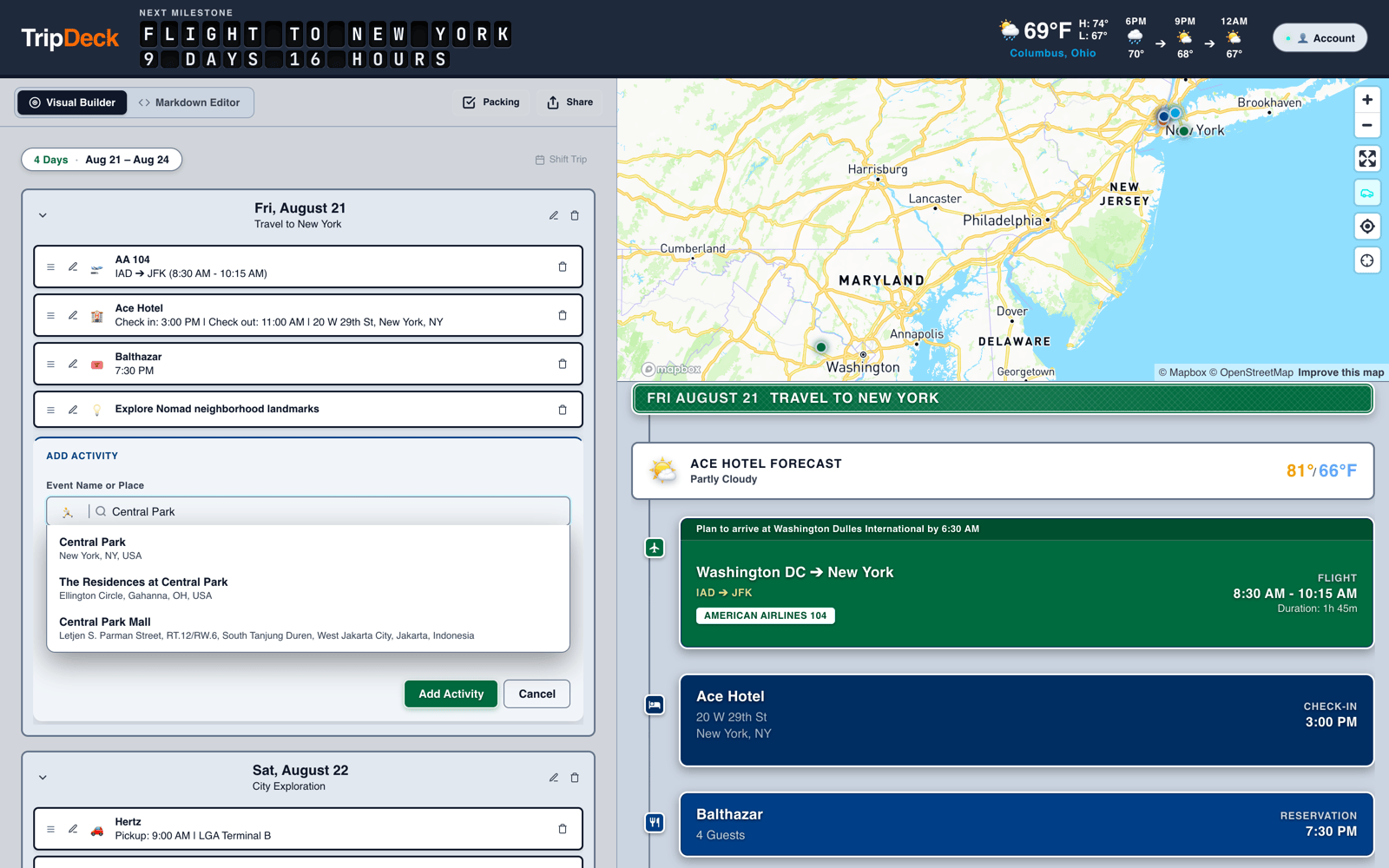
Add Event Form
- Event Name / Place Search: Type what you are doing or where you are going. As you type, TripDeck searches for matching real-world places, stations, or transit lines. Select a suggestion to fill in the rest of the event fields with name, address, and more. Or leave your text as entered to create an event with your custom name.
- Emoji Picker: Click the Emoji icon next to the name field to open the emoji picker. Scroll through available emoji or use the keyword search to find what you're looking for.
- Category Selector: Switch between 7 event types (Activity, Dining, Lodging, Flight, Transit, Car Rental, Idea) using the category pills. Selecting a category tailors the form inputs specifically to that event type.
- Times: Set your start time (or departure time for travel). For non-transit events, you can open the Add details drawer to set an optional end or checkout time.
Event categories & specialized fields
| Category | Default Emoji | Specialized Form Fields |
|---|---|---|
| Activity | 🏃 | Start time, optional end time, address/location, notes/links. |
| Dining | 🍽️ | Reservation time, end time, restaurant address, party size/notes. |
| Lodging | 🏨 | Check-in time, Check-out Date picker, Check-out time, address, confirmation code, notes. |
| Flight | 🛫 | Flight number / airline name, Departure & Arrival Airport search dropdowns, Departure & Arrival times, confirmation code, Show Route on Map toggle. |
| Transit | 🚆 | Service/operator name, Origin & Destination Station search dropdowns, Departure & Arrival times, Platform/Track, Coach/Seat, Show Route on Map toggle. |
| Car Rental | 🚗 | Pick-up time, Return Date picker, Return time, pick-up location, confirmation code, notes. |
| Idea | 💡 | Flexible placeholder for unscheduled ideas, sights to see, or backup plans. |
Event Details
Secondary details are tucked into the Show details collapsible drawer:
- Multi-day end dates: For Lodging (Check-out Date) and Car Rentals (Return Date), pick the conclusion date from the popup calendar.
- Address & Geocoding: Displays the selected address and automatically attaches map coordinates. When a location is selected from search, an interactive location chip appears beneath the name input.
- Notes & Confirmation codes: Add reservation numbers (such as
Conf: ABC123), table sizes, or URLs. Press Enter to add multi-line notes. - Show Route on Map: For Flights and Transit, toggle whether to draw an active route arc between origin and destination on the map.
Smart search & auto-detection
TripDeck automates data entry so you rarely have to type addresses or airport codes manually:
- Automatic category switching: Type keywords like "Flight UA 240", "Dinner at Nobu", "Hertz Rental", or "Eurostar" and TripDeck instantly switches to the corresponding category and emoji.
- Find & Add places: Start typing any hotel, museum, restaurant, or landmark. Select a suggestion from the dropdown to automatically populate the venue name, street address, and geographic pin on your map. Search results prioritize locations near your existing itinerary destinations.
-
Flight number lookup wand: When you enter a flight code (such as
AA 104orDL 456), a button appears. Click it to fetch departure and arrival airports and scheduled flight times. - Airport & Station autocomplete: For Flights and Transit, typing in airport or station fields brings up searchable IATA codes, cities, and rail stations.
Saving Places from the Web
When researching your trip on travel blogs, Google Maps, or review sites, you can send places directly into TripDeck with the Add to TripDeck bookmarklet:
- Open the Account drawer and click TripDeck Bookmarklet.
- Drag the Add to TripDeck button to your browser's bookmarks bar.
- Click the bookmark on any web page to send the page title, URL, and any selected text straight into an event in your current trip.
You can also add events by pasting a URL directly into the Event search field in the event editor. Place information can be extracted from maps links. Most links will fetch the pasted page title as the event title.
Editing, reordering, and removing
- Editing an event: Click the pencil icon on any event card to open the inline editor and update details.
- Reordering events: Drag and drop event cards within a day or between different days using the drag handle.
- Collapsing days: Click any day header to collapse or expand its events, helping you focus on specific parts of long trips.
- Removing an event: Click the trash icon on an event card and confirm to delete it.
- Removing a day: Click the trash icon on a day header to remove the day from your itinerary. TripDeck allows you to remove just that day or that day along with all subsequent days.
Shifting dates
When travel schedules change, you can adjust your itinerary dates without re-entering events:
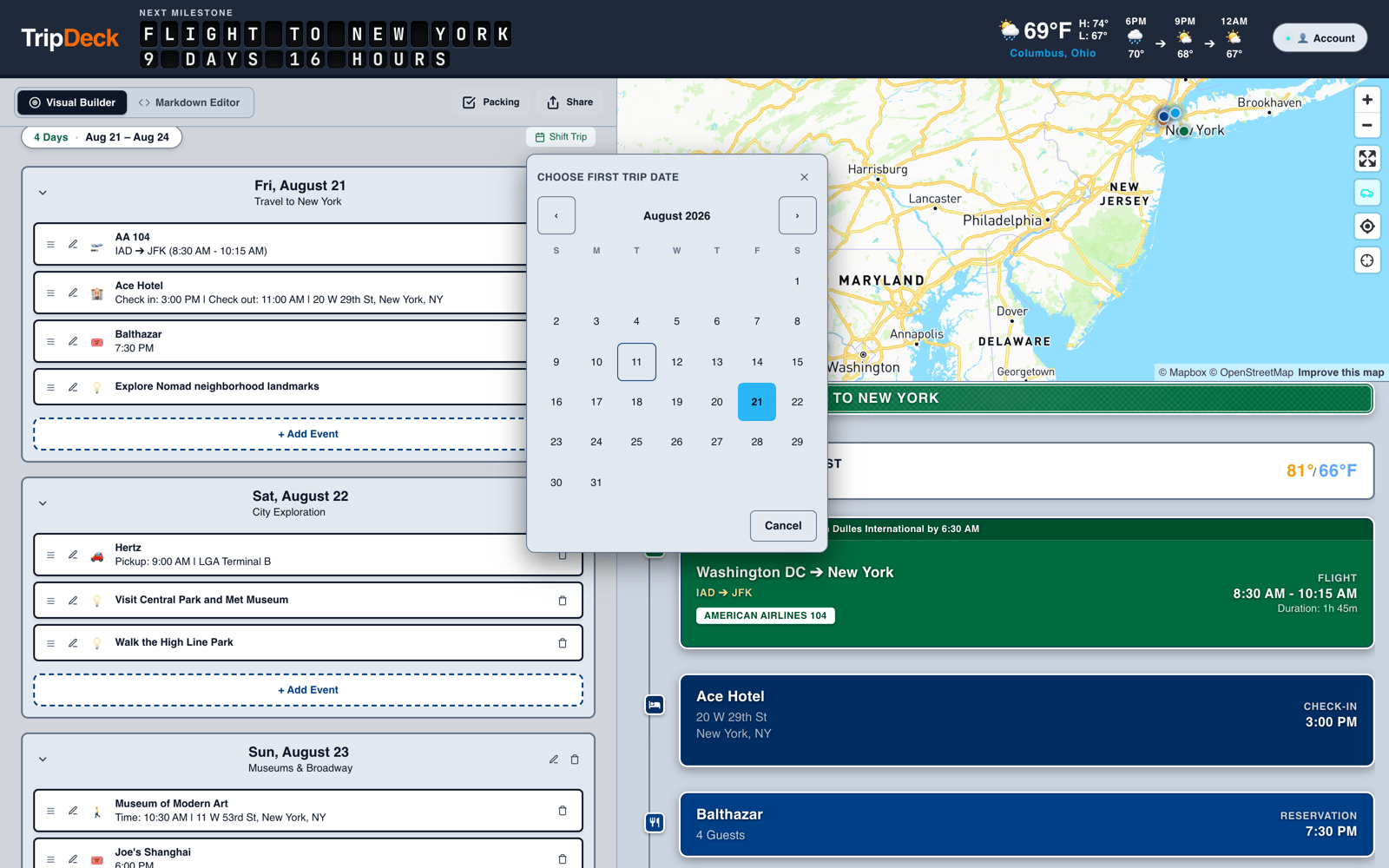
- Shift the whole trip: Click Manage Dates at the top right of the timeline outline, choose a new start date on the calendar, and all days and events shift together by the exact difference.
- Shift from a single day: Edit an individual day's date directly. TripDeck will ask whether to shift all subsequent days along with it or adjust only that single day.
Related guides
- Keyboard Shortcuts: Speed up navigation, day toggling, and opening the Add Event modal.
- Writing in the Text Editor: Explore the plaintext syntax behind every card and how to export your trip.
- App Settings & Themes: Customize visual themes, units, and map preferences.
- Packing Lists: Build and manage packing checklists synchronized with your trip.
- Sharing Trips: Share view-only links or collaborate in real time with end-to-end encryption.