Getting Started
TripDeck turns flight confirmations, hotel bookings, and loose plans into one visual itinerary. Get started with your first trip.
User Accounts
You don't need an account to start planning. Open TripDeck and you're dropped straight into a sample trip in the builder. Clear it out or edit it in place to start building your own itinerary right away.
Your trip is saved to your browser as you go, so you can close the tab and come back to it later. When you're ready for next steps, such as saving multiple trips or picking up your plans on another device, creating an account will move your trip into your account.
See Passkeys & Sign-in for more information.
Building a Trip
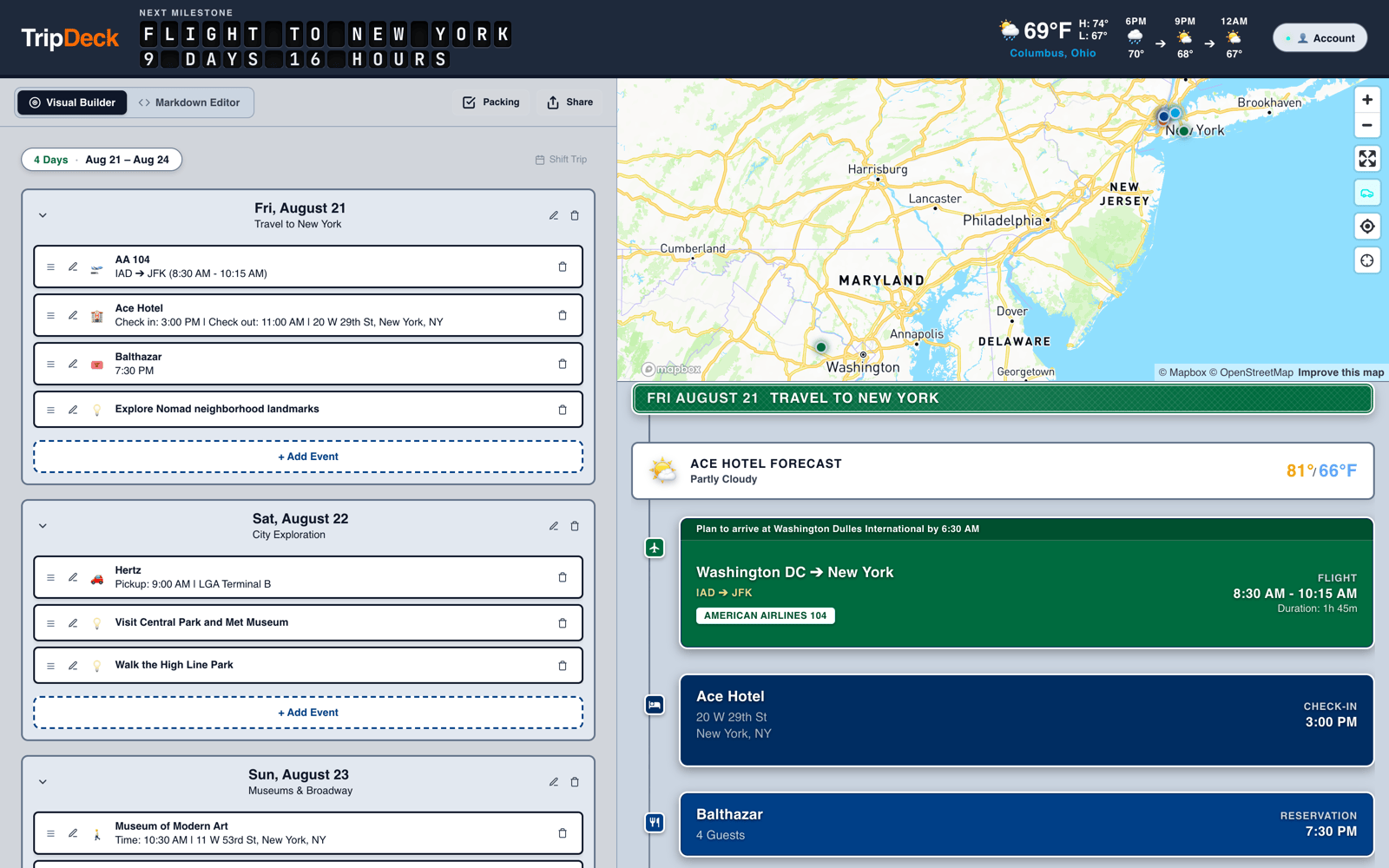
On wide screens, you'll see two panels: The left panel is your editor. The Visual Builder tab shows your trip as a draggable outline, each day has a card with rows for each event.
Use + Add New Day to start adding days into your trip. Then click on + Add Event inside any day to add a flight, lodging, car rental, reservation, activity, or idea to it.
Most event types allow for searching for a place name or address and get a suggestion. Flights allow for searching by flight number to look up airports, travel times, gate info, and more.
Events can have scheduled times, or can be unscheduled. Events with scheduled times appear ordered in the timeline. Reorder events by dragging with the handles on the left. Unscheduled events will sit in the timeline in the order you prescribe.
For more information about adding and editing events, see Building a Trip, or check out Keyboard Shortcuts to speed up your workflow.
The Timeline and the HUD
The right panel is your itinerary: a timeline of cards grouped by day, with an interactive map alongside it on desktop. Every flight, hotel, car, reservation, and activity you add appears here automatically.
At the top, the HUD shows a live countdown to whatever is happening next in your trip, plus the weather at your current location.
Sharing & Collaboration
TripDeck provides two options for sharing trip itineraries:
- View Only: Generates a read-only link that does not send private info or notes like confirmation codes.
- Collaborator: Provides full editable access to add a trip co-planner.
Learn more in Sharing Trips.
Packing Lists
Stay organized before departure with TripDeck's built-in packing checklist overlay. It groups items by category, tracks progress, and offers context-aware suggestions based on your destinations and weather forecast.
Learn more in Packing Lists.
Privacy & End-to-End Encryption
Your trip data belongs to you. In guest mode, your itinerary remains strictly local in your browser. When signed in, saved trips are end-to-end encrypted before syncing. TripDeck servers never see any flight details, addresses, or personal notes.
Learn more in Understanding End-to-End Encryption.
App Settings & Themes
Personalize your experience from the account panel. You can choose different themes toggle map display modes, and configure unit preferences for weather and distances.
Learn more in App Settings & Themes.